
Guides › Fixing Common Errors in RBTERP
Fixing Common Errors in RBTERP
RBTERP team · · 3 min read
What RBTERP's most common messages mean and how to fix them: closed periods, missing exchange rates, insufficient stock, account mapping and setup.
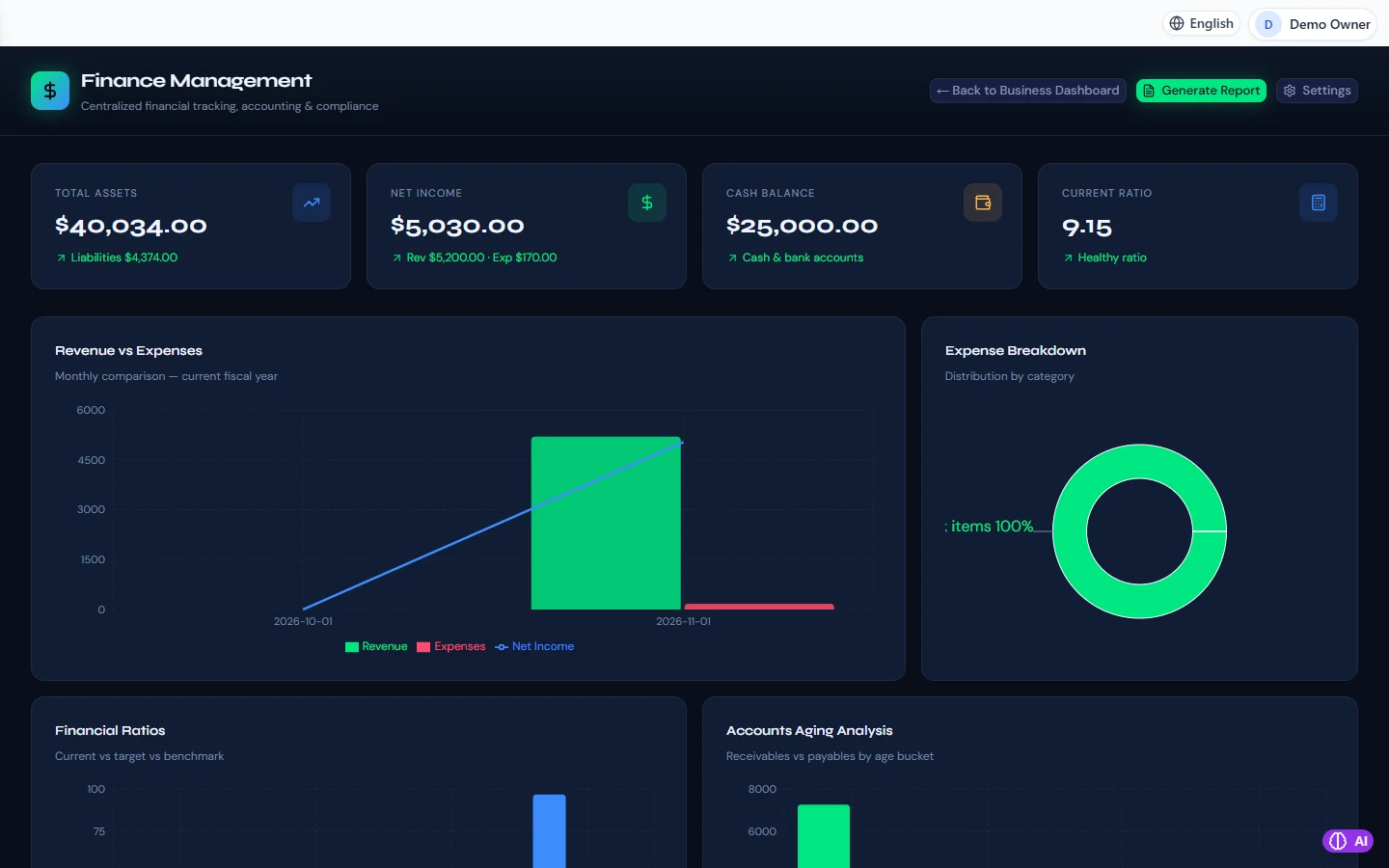
Finance & Accounting in RBTERP, with a sample company and fictional data.
RBTERP refuses a posting when it would make your books wrong, and it says why. A refusal is not a fault in the software. It is the software protecting your figures. This guide explains the messages you are most likely to meet, why they appear, and what to do.
When a posting is refused
"Accounting period … is closed"
The document is dated in a month that has been closed, or a period that has been locked. Closed months keep reported figures from changing.
Fix: date the document in an open month. If it truly belongs in the closed month, ask the person in charge of finance to reopen it; reopening is recorded. See the month-end close checklist.
"The account mapped to … is inactive" or "no longer exists"
Every document posts through posting roles, and the account answering one of them has been deactivated or removed.
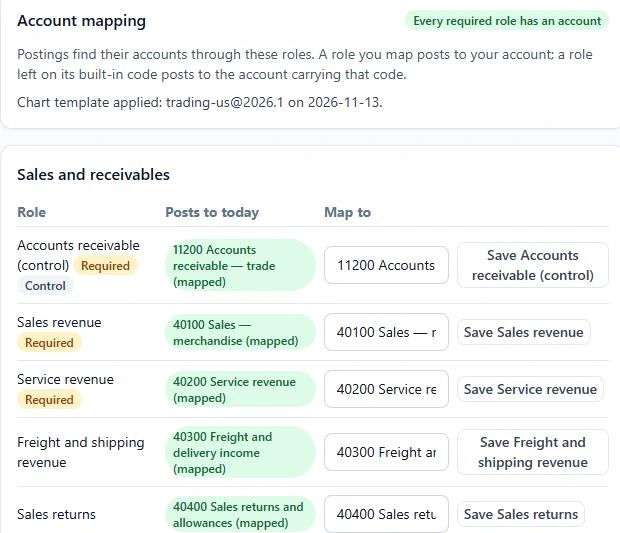
Fix: reactivate the account, or map the role to another account under Settings, then Account mapping. See chart of accounts for a trading company.
"No … exchange rate on or before …"
The document is in a currency other than your books currency, and no exchange rate has been entered for its date.
Fix: add the rate under Purchases, then Exchange rates. The rate is one unit of the foreign currency in your books currency.
"Insufficient stock"
The warehouse does not hold the quantity you are trying to ship or issue. RBTERP never lets stock go below zero.
Fix: receive the stock first, choose another warehouse, or reduce the quantity. If you are sure the goods are physically there, a receipt is missing; see stock control for small businesses.
A return's tax does not match
The tax entered on a customer return is not the tax of the lines it returns, at the invoice's rates.
Fix: enter the returned lines' tax exactly as on the original invoice. See customer returns and credit notes.
"The customer's state is required"
For a United States company, a sale to a customer without a tax profile cannot work out the tax.
Fix: open the customer in Sales and complete the tax profile with country and state.
Settings and setup messages
"Cannot be changed: this company already has posted journals"
The books currency and fiscal-year start month lock at the first posting. They cannot be changed afterwards; a wrong books currency can only be cured with a new company.
"A chart template is applied before the first posting"
Templates set up the whole chart at once and can only do so in an empty company. Once anything is posted, map posting roles one by one instead.
"… is a control account and this company has posted journals"
You are moving a control account, such as receivables or inventory, after postings exist. Confirm, then transfer the old account's balance with a journal.
"Setup cannot finish yet"
The setup wizard lists each open step and blocking item. Fix each where it says. See setting up a new company.
The readiness report
Settings, then Company, shows the go-live readiness report. Each item names its own fix: no country chosen, a country pack chosen but its tax not provisioned, an empty chart, a posting role with no account, duplicate account codes, no bank account, no warehouse, or a time zone that differs from the computer's clock. See the go-live readiness checklist.
Asking for help
If a message is not here, collect what support will need:
- What you did, the time, and the message exactly as shown.
- The items on the readiness report, from Settings, then Company.
- The product version, from Settings.
- On the desktop, the day's file from the `logs` folder in the data folder, if asked.
Never send your database, passwords or the installation's secret files. Support does not need them. Then contact us.