
Guides › Keeping Your Accounting Data Secure
Keeping Your Accounting Data Secure
RBTERP team · · 3 min read
A practical security checklist for a small business ERP: sign-in, roles, the computer itself, backups, network access and personal data.
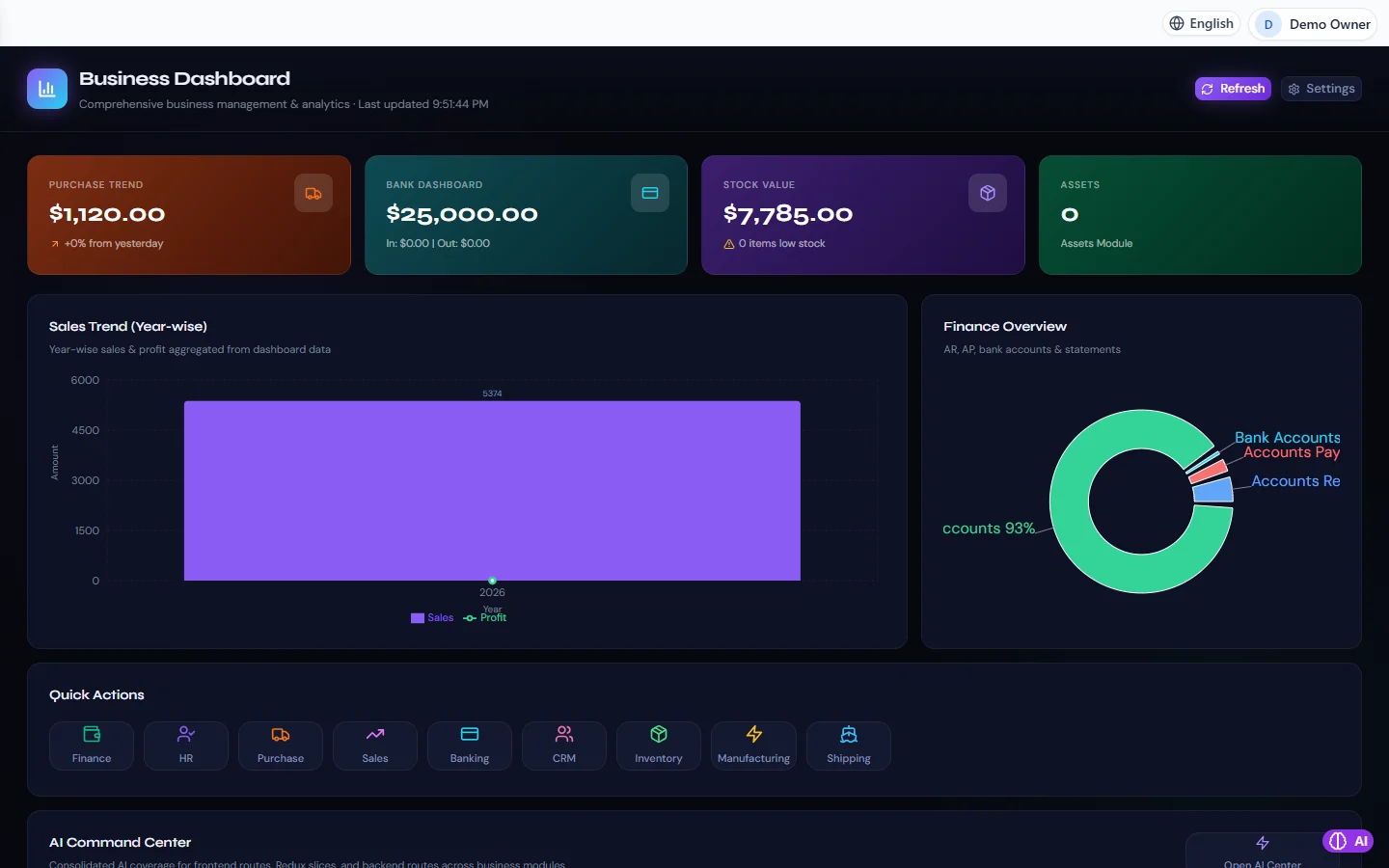
Business Dashboard in RBTERP, with a sample company and fictional data.
Your accounting system holds your customers, your prices, your margins and your staff's salaries. Most security problems in small businesses are not clever attacks. They are shared passwords, unlocked computers, backups nobody protects, and former staff whose accounts still work. All of these are easy to fix.
Know where the data is
With the RBTERP desktop edition, everything is on one computer: the database, attachments, backups and the settings that protect sign-ins. Nothing is sent to us. That is a strength, because nobody outside can reach it, and a responsibility, because protecting that computer protects everything.
Other computers can reach the data only if you turn on network access for your office. See multi-user access on your office network.
The checklist
1. Everyone signs in
Under Users, then Settings, turn on Require sign-in, and set a password policy and lockout. Once on, every request without a valid sign-in is refused, even from the computer RBTERP runs on.
2. One account per person
No shared logins. Each person's actions are then recorded under their own name, and one person can be disabled without affecting anyone else. See users, roles and permissions.
3. The narrowest role that works
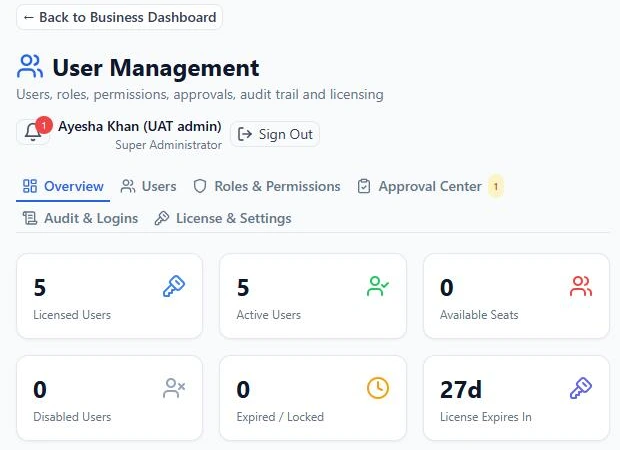
A salesperson does not need payroll. An auditor needs to read, not to change. RBTERP checks permissions on the server for every request, so a role is a real limit, not a hidden button.
4. Remove accounts nobody uses
Disable accounts on the day someone leaves. Review the list every quarter.
5. Protect the computer itself
- A Windows password on the computer, and a screen lock when you step away.
- Windows updates and antivirus kept current.
- The computer in a place where visitors cannot sit down at it.
- If possible, disk encryption, so a stolen computer does not mean stolen data.
6. Protect the backups
A backup holds the whole company. Keep backups where only administrators can read them, protect them with a passphrase, and keep one copy off the computer. A backup on a USB drive left in the office is protected by nothing but the office door. See how to back up your accounting data.
7. Keep network access off unless you need it
If only one person uses RBTERP, leave network access off. If staff need it, keep it on the office network and never expose it to the internet.
What RBTERP records
RBTERP keeps a record of settings changes, with who changed what, the value before and after, and why; changes to account mappings; user and role changes; sign-ins; finance controls such as period locks, closes and reversals; and the log of calls made through the integration interface. Review it now and then, especially after someone leaves.
Personal data
Customer, supplier and user records hold names, contact details and tax numbers. An administrator can export them, correct them or deactivate them. Posted documents that name a person are kept as accounting records; a request to erase them must be weighed against your legal duty to keep your books.
When you ask for support
Never send your database, passwords or the installation's secret files to anyone, including us. Support does not need them. Send the exact message, the time, what you were doing, the product version, and if asked, the day's log file. See fixing common errors.
The short version
Sign-in on, one account each, narrow roles, a locked computer, protected backups off the premises, and network access only where needed. Do these six things and you are ahead of most businesses your size.