
Guides › How to Back Up Your Accounting Data
How to Back Up Your Accounting Data
RBTERP team · · 4 min read
A simple backup routine for a small business: how often, where to keep copies, how to test them, and what to do before a restore.
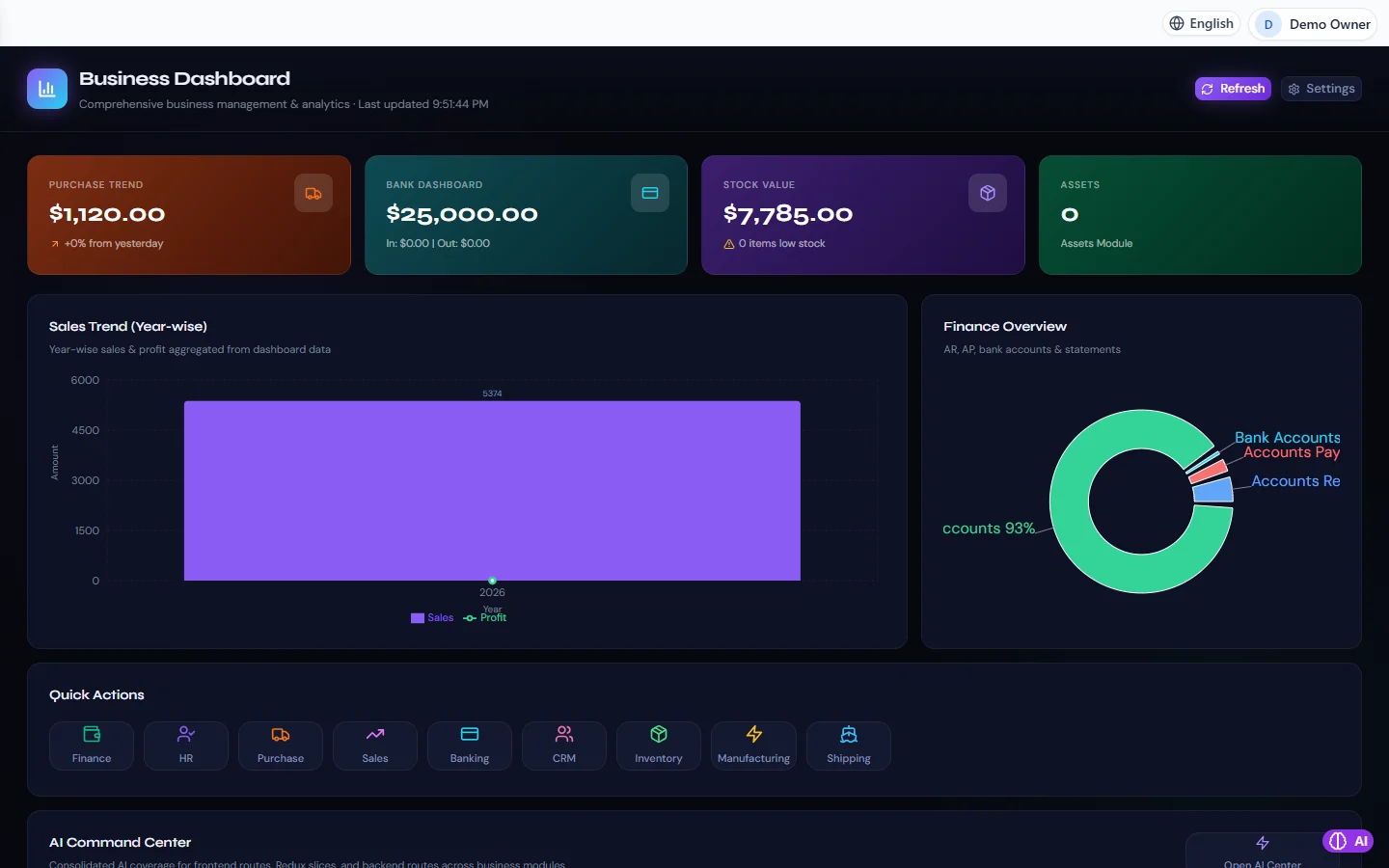
Business Dashboard in RBTERP, with a sample company and fictional data.
Your accounting records are the one thing in the business that cannot be bought again. A stolen laptop can be replaced in a day. Three years of invoices, customer balances and payroll cannot. A backup routine costs a few minutes a week, and it is the difference between an inconvenience and a disaster.
What can go wrong
- The computer's disk fails.
- The computer is stolen, or damaged by fire, water or a power surge.
- Ransomware locks every file on the machine and on any drive plugged into it.
- Someone deletes or overwrites the wrong thing.
- A software update goes wrong.
Notice that most of these destroy everything on the computer at once. A backup kept on the same computer protects you against only the last two.
The rule of three copies
Keep three copies of your data, on two different kinds of storage, with one of them somewhere else:
- The live data on the computer you work on.
- A backup on a separate device in the office, such as a USB drive.
- A backup away from the office: a cloud drive, or a USB drive kept at home.
Unplug the USB drive after the backup is written. A drive left connected is encrypted by ransomware along with everything else.
How often
Ask how much work you could afford to enter again.
- Daily, if you raise invoices every day. Automatic is best, because a backup that depends on someone remembering will be skipped in the busy weeks, which are the weeks that matter.
- Before anything risky: a software upgrade, a large import, year-end closing.
- At every month-end, labelled with the month, and kept. See the month-end close checklist.
Keep more than one
If you keep only the latest backup and the data was damaged last Tuesday, the latest backup is a faithful copy of the damage. Keep a series: the last week of daily backups, and the month-end ones for longer.
Test it
A backup you have never restored is a hope, not a backup. Twice a year, restore one onto a spare computer and check that it opens and that recent invoices are there. It is far better to learn that the backups are empty on a quiet afternoon than on the day you need one.
Protect the copies
A backup contains everything: customers, prices, salaries. Treat it like the original.
- Encrypt backups that leave the office.
- Keep the password somewhere other than with the backup.
- Know who has the off-site copy.
Before you restore
Restoring replaces what you have now with what you had then. Everything entered since the backup was made is gone unless you saved it first.
- Stop everyone working.
- Take a backup of the current state, even if you believe it is damaged.
- Restore.
- Check the result before anyone starts work: the last invoice number, the bank balance, the trial balance.
- Re-enter what was done after the backup.
Backups in RBTERP
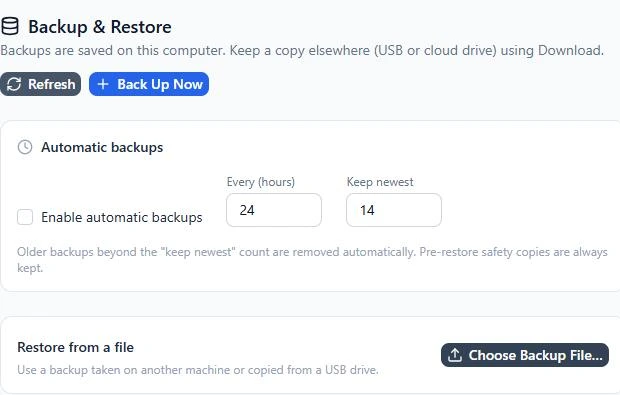
In the RBTERP desktop edition all your data lives in a single database on your own computer and never leaves it, so backing up is your responsibility, and it is built in under Settings, then Backup and Restore.
- Back Up Now makes a complete, self-contained backup package holding the database, the attachments and a manifest with a checksum for each table and file. You can add a label such as "before year-end".
- Each backup checks itself the moment it is made. If the copy is not perfect it is discarded, not kept as a false safety net.
- Automatic backups run on the schedule you set, for example every 24 hours, and you choose how many to keep. If the application was closed when a backup was due, one is taken shortly after it next starts.
- Download saves any backup to a USB drive or a cloud folder, which is how you get the copy off the computer.
- Before a restore, RBTERP automatically takes a safety backup of your current data, so a restore can be undone. These safety copies are never deleted automatically.
- Before an upgrade, a backup is taken automatically when a new release starts on older data, before it changes anything.
- Backups can be encrypted.
The screen shows where your database and your backups are stored. Make a note of both, and make sure the off-site copy is really off the computer.