
Guides › Multi-User Access on Your Office Network
Multi-User Access on Your Office Network
RBTERP team · · 3 min read
How several people use RBTERP's desktop edition at once over the office network, with the data kept on one computer and never sent to the cloud.
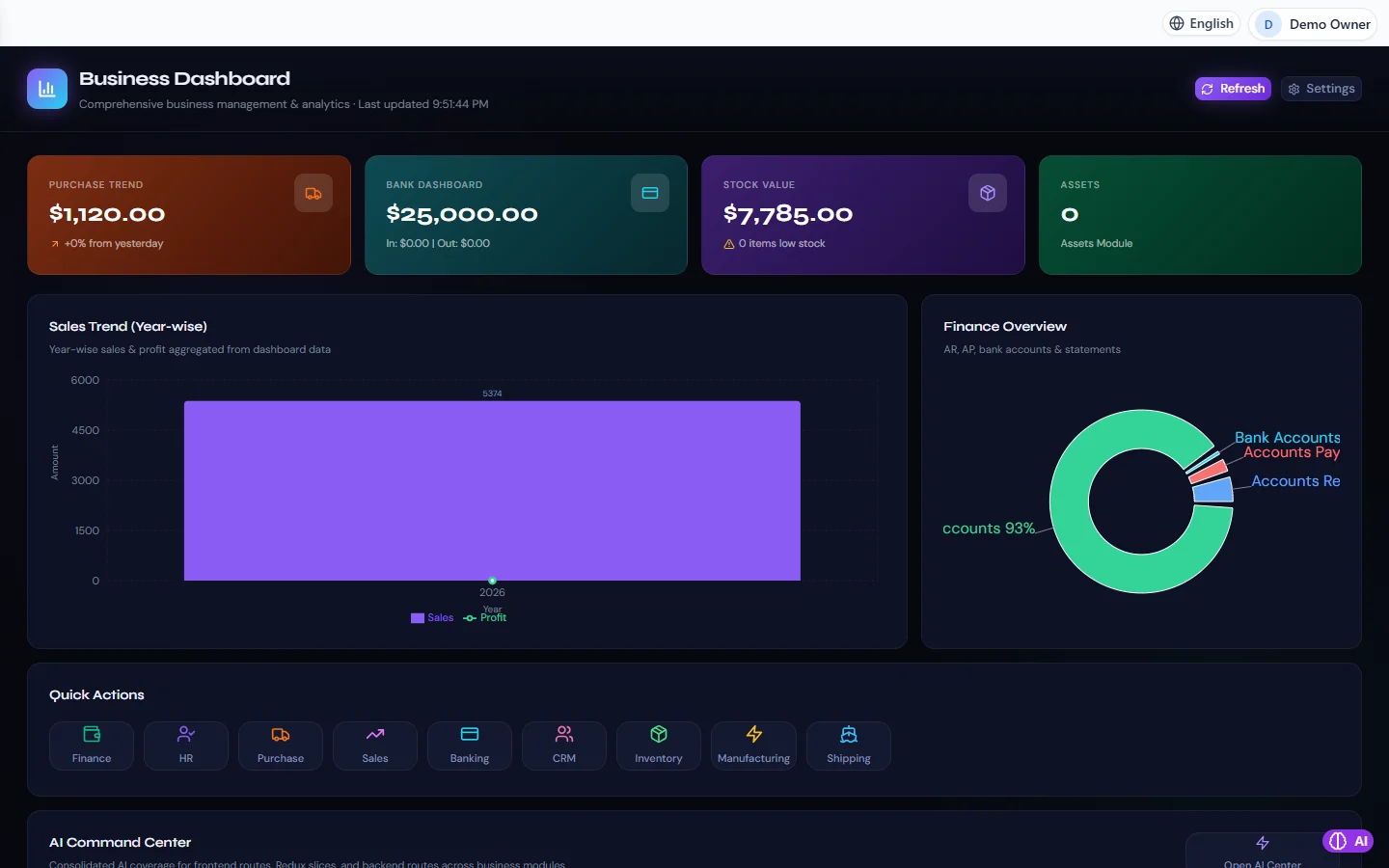
Business Dashboard in RBTERP, with a sample company and fictional data.
The RBTERP desktop edition keeps your data on your own computer. That does not mean only one person can use it. Over your office network, several people can work in the same company at the same time, while the data stays on one machine and never goes to the internet.
How it works
- One computer runs RBTERP. We call it the host.
- The host also offers RBTERP to other computers on the same network, at a local address such as `http://192.168.1.20:3002`.
- Staff open that address in a web browser such as Chrome or Edge, and sign in with their own account.
- Everyone reads and writes the same company data, live.
This suits a single shop, office or clinic where the computers share one Wi-Fi or wired router.
Choosing the host
The host holds all the data, so choose with care:
- A computer that stays on throughout working hours. If the host sleeps or RBTERP is closed, everyone else is disconnected until it is back.
- Preferably on a wired connection.
- Kept somewhere secure, with its own Windows password.
- Backed up every day. With several people entering data, daily backups matter more, not less. See how to back up your accounting data.
Setting it up
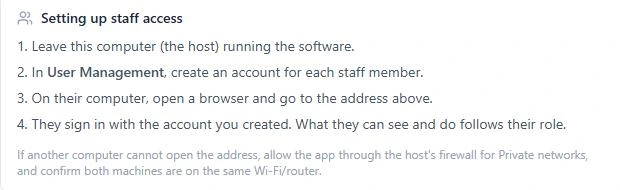
On the host
- Start RBTERP as usual and leave it running.
- Open Settings, then Network Access (LAN). It shows the exact address other computers should use, and a QR code you can scan from a phone or tablet.
- Under User Management, create an account for each staff member, with the role that fits their work. See users, roles and permissions.
On each staff computer
- Open a web browser.
- Type the address shown on the host's Network Access screen.
- Sign in with the account created for that person.
What each person can see and do follows their role.
Security
- Every other computer must sign in. There is no anonymous access from the network in the normal desktop build.
- The built-in sign-in shortcut on the host answers only the host itself, never another computer.
- If the Network Access screen shows a red Development mode warning, the server is running in an open mode where anyone who can reach the address gets in without signing in. Use the normal desktop build for staff.
- Give each person their own account rather than sharing one.
- This is designed for one local network. Do not expose it to the internet, for example by forwarding a port on your router.
If a staff computer cannot connect
- Same network? Both computers must be on the same router. Guest Wi-Fi networks are usually isolated and will not work.
- Firewall. The first time, Windows may ask whether to allow RBTERP on the network. Choose Allow for private networks. If you missed the question, allow RBTERP, or the port shown on the Network Access screen, through Windows Defender Firewall for private networks.
- Right address? The host's address can change when it reconnects. If connections suddenly stop, check the Network Access screen again. Giving the host a fixed or reserved address in your router prevents this.
- Host awake? The host must be on and RBTERP running.
Good practice
- Reserve the host's address in your router so it never changes.
- Turn on *Require sign-in* under Users, then Settings.
- Turn on automatic backups under Settings, then Backup and Restore, and keep a copy off the host.
- Leave network access off if nobody else needs it.
When the business outgrows one office, talk to us about the server installation, which runs on a database server instead of a single desktop. Contact us with the number of users and sites.