
Guides › Upgrading RBTERP Safely
Upgrading RBTERP Safely
RBTERP team · · 3 min read
How to prepare for a new RBTERP release, install it on the desktop, check that it worked, and what to do if an upgrade stops part way.
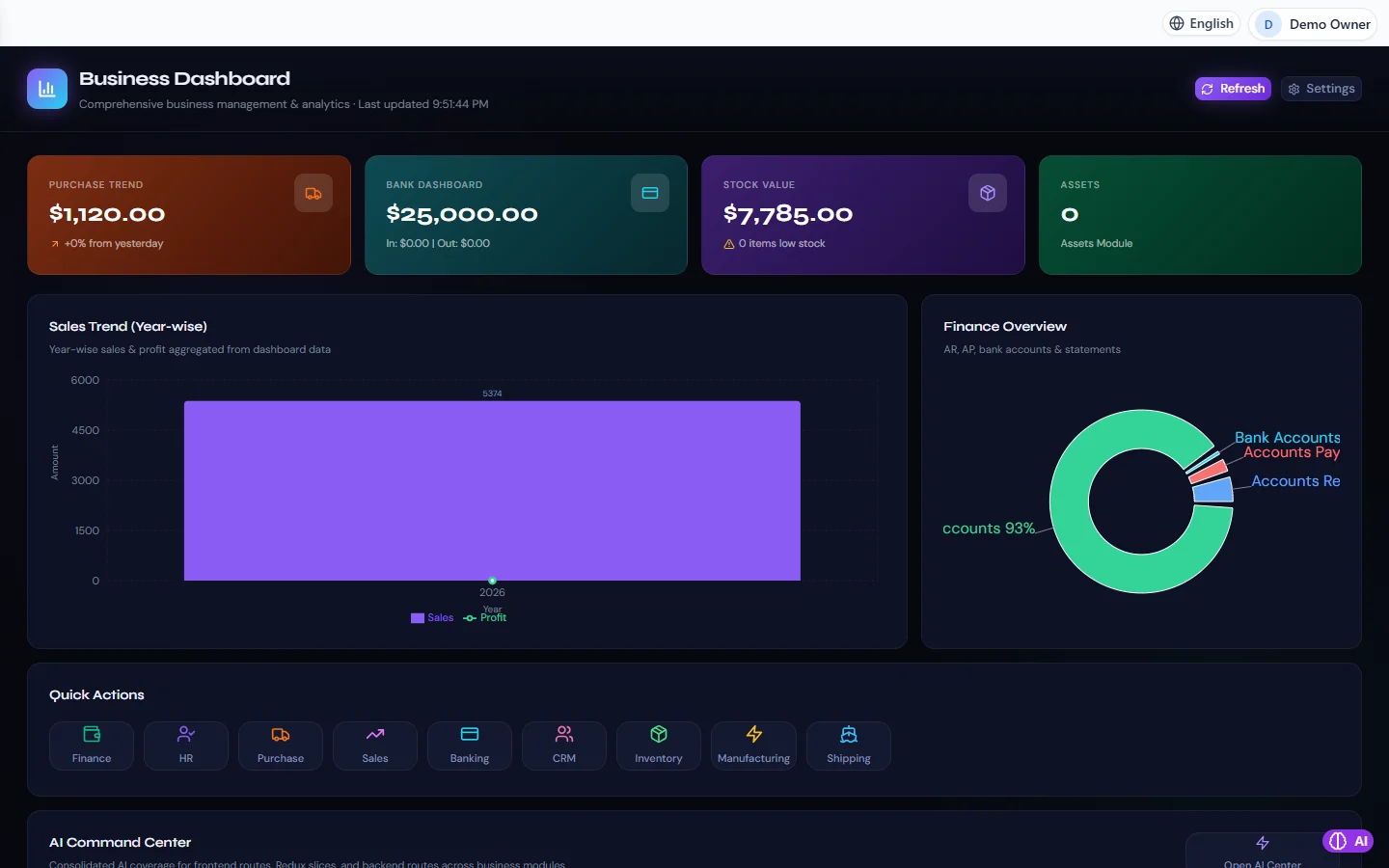
Business Dashboard in RBTERP, with a sample company and fictional data.
New releases bring fixes and features, and sometimes changes to how your data is stored. An upgrade is routine, but it touches every record you have, so it deserves a little preparation. Twenty minutes of care before an upgrade is worth far more than a day of recovery after one.
Choose the moment
- When nobody is entering data: early morning, an evening or a weekend.
- Not in the middle of month-end closing or payroll.
- When you have time to check the result before work starts again.
Read the release notes we send with the installer first. They say what changes and whether anything needs your attention.
Before the upgrade
- Note where you are. Under Settings, then Support, *About this installation* shows the product version and the schema: the version of your data's structure. Write both down.
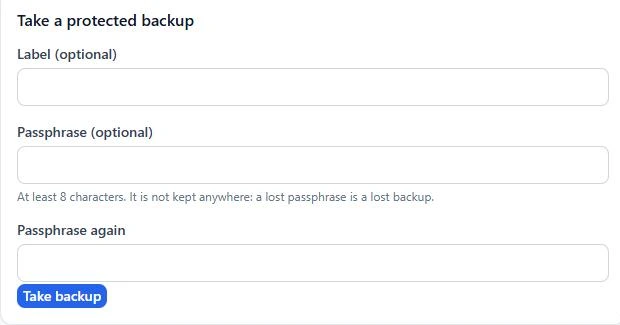
- Take a protected backup. Under Settings, then Backup and Restore, take a backup with a label such as "before November release", and protect it with a passphrase.
- Check that backup. It must show *Passes every check*. A backup that does not pass is not a starting point: free some disk space and take it again.
- Copy it off the computer to storage only administrators can read.
- Ask everyone to sign out, including any staff working over the office network.
Upgrading the desktop
- Close RBTERP.
- Run the new release's installer over the existing installation. Your data folder is kept.
- Start RBTERP and sign in.
- Open Settings, then Support, and read *About this installation*.
- Open Settings, then Backup and Restore. You should see a backup named with *before-upgrade*.
What RBTERP does by itself
When a new release starts on older data, it protects you before it changes anything:
- It reads where your data stands.
- If the data is behind the new release, it takes a pre-upgrade backup and checks it before making any change.
- It brings the data's structure up to date, one recorded step at a time.
- A second start does nothing further.
If that pre-upgrade backup cannot be taken, nothing is changed and RBTERP refuses to work until the problem is fixed, rather than carrying on without a safety net. Note that the automatic pre-upgrade backup on the desktop holds the database only, not attachments, which is why your own protected backup in the preparation step matters.
Checking the result
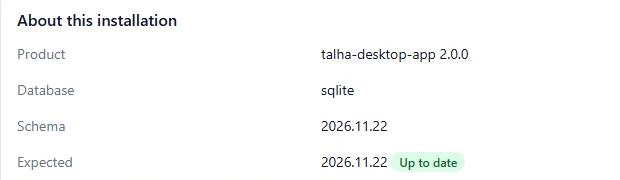
- *About this installation* shows Up to date, the expected schema, and the changes this release applied.
- Your figures are as they were: compare the trial balance, stock value and bank balances with what you saw before.
- Open a recent invoice and a recent payment to see that they look right.
If an upgrade stops
You may see a red Upgrade stopped banner under Settings, then Support, or screens saying the upgrade did not start or a step failed. In that state only backups, the version screen and sign-in work. The message names the cause and, where relevant, the backup to restore. Follow it, or contact us with the exact message before trying anything else.
Some upgrades check your data first and stop with a list of records that must be tidied, without changing anything. Fix what it names and start again.
Keep the old backups
Keep at least the backup from before each upgrade until you are confident in the new release, usually a full month-end later. Backups from earlier releases can still be checked and restored. See how to back up your accounting data.
Our Software Update service does all of this for you: a backup before the upgrade, the upgrade itself, and a balance check before and after.